Showing posts with label HTML. Show all posts

Sunday, 22 August 2021

Must Know HTML Tags That Almost Nobody Knows

Web developers are expected to work with multiple languages these day. So it's inconvenient to learn everything a language has to offer and obvious to find them not utilizing full potentialof some specialized features. 

We use HTML everyday. But still there is enough left to know about it. It's never too late to get back into game and start writing code that taps into the power of some under-used tags.

Here are 5+  HTML tag that almost nobdy knows.

1. Fieldset Tag

The <fieldset> tag  is used to group related form elements. By using fieldset and legend tag, you can make your form design clearer.
 
<!DOCTYPE html>
<html>
   <head>
      <title>HTML fieldset Tag</title>
   </head>
   <body>
      <form>
         <fieldset>
            <legend>Details</legend>
            Student Name: <input type = "text"><br />
            Subjects:<input type = "text"><br />
            Course Link:<input type = "url" name = "websitelink">
         </fieldset>
      </form>
   </body>
</html> 

Output : 


2. DataList Tag:

The <datalist> tag is used to provide an autocomplte feature to an input element. Users will get drop-down list of pre-defined options as they input data.


<!DOCTYPE html>
<html>
<body>

<h1>The datalist element</h1>

<form action="/action_page.php" method="get">
  <label for="browser">Choose your browser from the list:</label>
  <input list="browsers" name="browser" id="browser">
  <datalist id="browsers">
    <option value="Edge">
    <option value="Firefox">
    <option value="Chrome">
    <option value="Opera">
    <option value="Safari">
  </datalist>
  <input type="submit">
</form>

</body>
</html>
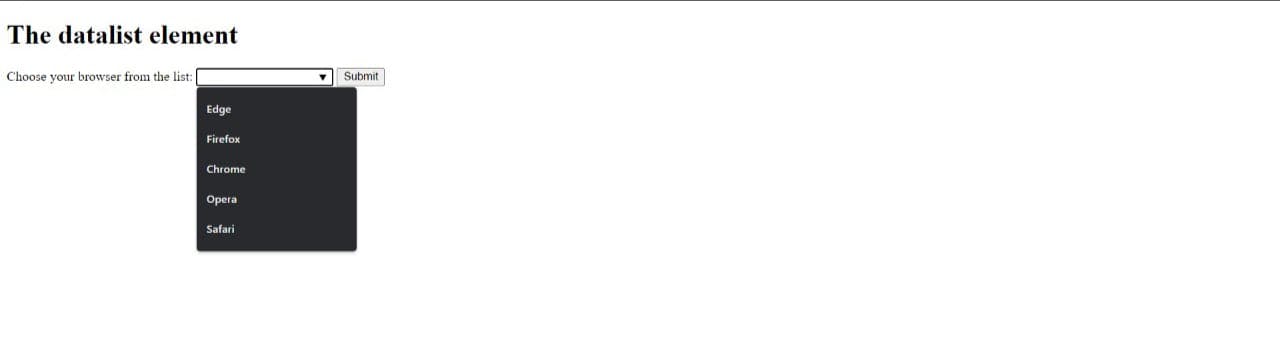
Output :
 

datalist.jpeg 


3.Time Tag:

The <time> tag defines a specific time (or datetime). The datetime attribute of this element is used to translate the time into a machine-readable format so that browsers can offer to add date reminders through the user's calendar, and search engines can produce smarter search results.


<!DOCTYPE html>
<html>
<body>

<h1>The time element</h1>

<p>Open from <time>10:00</time> to <time>21:00</time> every weekday.</p>
</body>
</html>

Output : 

time.jpeg


4. Color Picker Tag:

The <color> tag  defines a color picker. It provides the user interface that lets a user specify a color, either by using a visual color picker or by entering hexadecimal value of a color.


<!DOCTYPE html>
<html>
 <head>
 </head>
 <body>
   <label for="colorpicker">Color Picker:</label>
   <input type="color" id="colorpicker" value="#0000ff">
 </body>
</html>
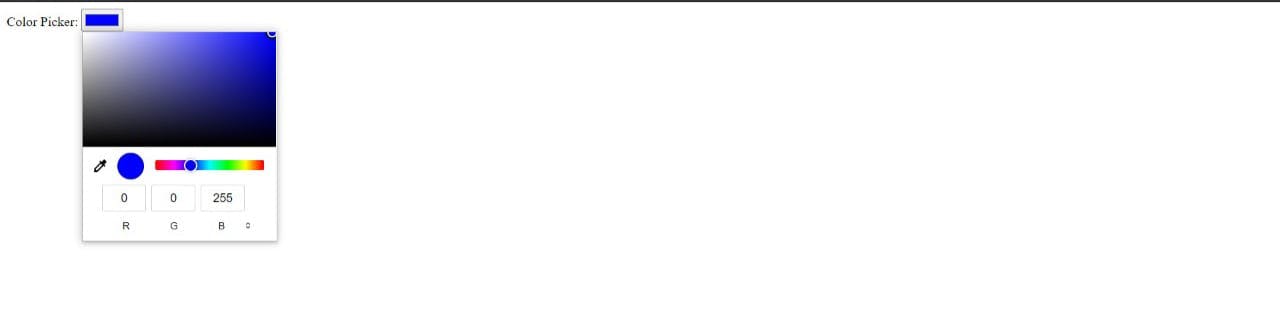
 
 
Output : 
 colorpicker.jpeg


5. Progress Tag:

The <progress> HTML element displays an indicator showing progress of a task, typically displayed as a progress bar.


<!DOCTYPE html>
<html>
<body>

<h1>The progress element</h1>

<label for="file">Downloading progress:</label>
<progress id="file" value="32" max="100"> 32% </progress>

</body>
</html>

Output : 


6. Abbreviation Tag:

The <abbr> tag is used to define acronym or abbreviation of an element. It is used to provide useful information to the browsers, translation systems, and search engines. Learn in-depth about abbreviation tag here.


<!DOCTYPE html>
<html>
<body>

<h1>The abbr element</h1>

<p>The<abbr title="Alabama">AL</abbr>is in USA</p>

</body>
</html>
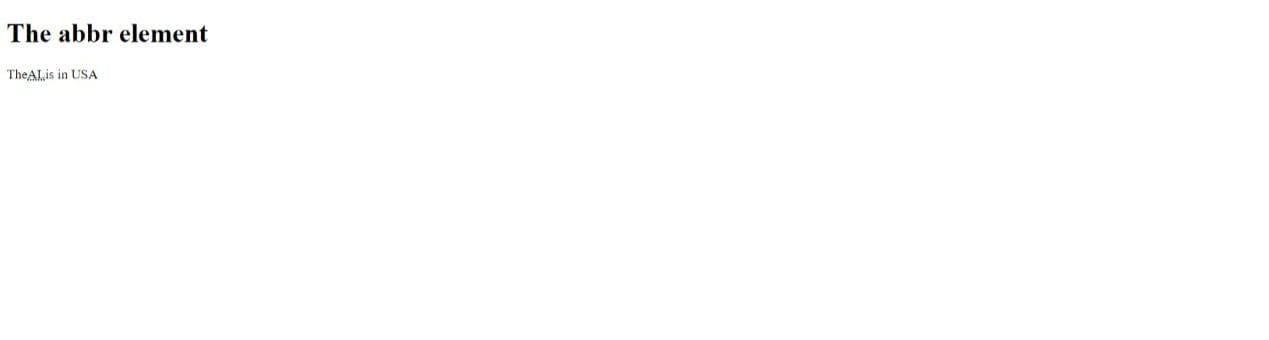
 
 
Output : 
 
 
abbr.jpeg


7. Template Tag:

The <template> tag is used to hold some HTML content hidden from the user when the page loads. The content inside can be rendered later with JavaScript. See more about this tag here.
 
 
<!DOCTYPE html>
<html>
<body>

<h1>The template Element</h1>

<p>Click the button below to display the hidden content from the template element.</p>

<button onclick="showContent()">Show hidden content</button>

<template>
  <h2>Flower</h2>
  <img src="https://www.deadlinenews.co.uk/wp-content/uploads/2020/10/andrew-small-EfhCUc_fjrU-unsplash-scaled.jpg" width="214" height="204">
</template>

<script>
function showContent() {
  var temp = document.getElementsByTagName("template")[0];
  var clon = temp.content.cloneNode(true);
  document.body.appendChild(clon);
}
</script>

</body>
</html>
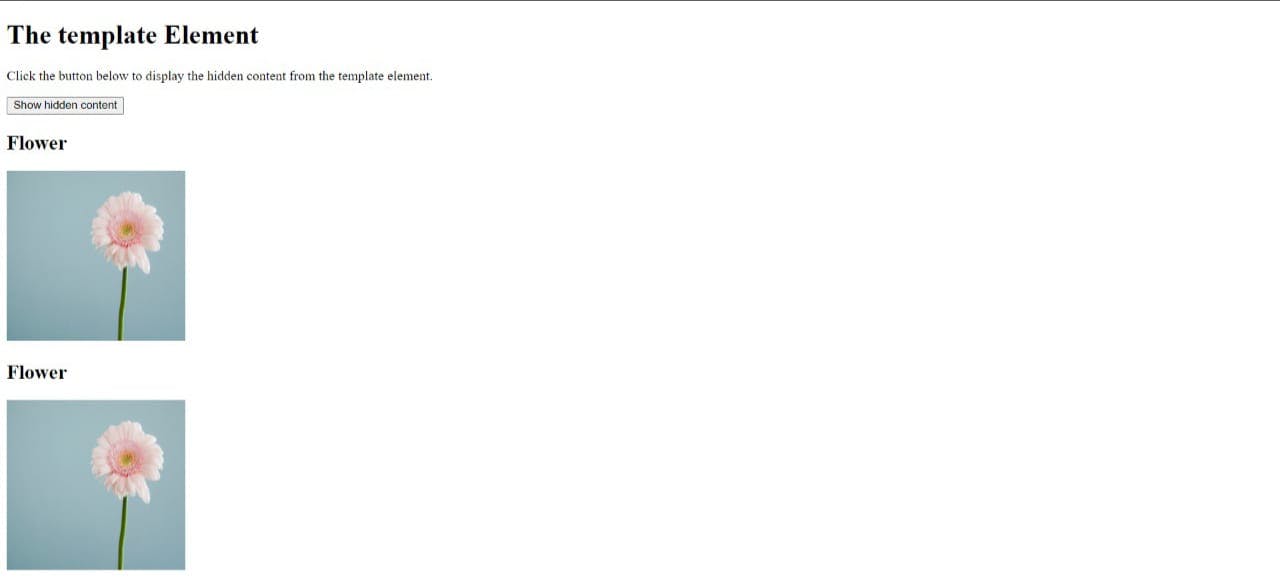
 
 
Output : 
 
 template.jpeg
I hope that you got something useful today. If that so let me know in the comments. Thanks for reading :)

Wednesday, 18 August 2021

What is HTML, CSS and JavaScript?

Hello  there, my gorgeous friends on the internet ? What's going on ? 

Today's article is all about why should you learn HTML, CSS and JavaScript and what is it actually. How these forms skeleton for developing a website. 

So let's get started. 

What is HTML, CSS and JavaScript

1. What is actually HTML?

According to the internet, it is Hyper Text Markup Language. Now let's look at what's this mean. 

Hyper-Text are texts, images, tables, and other representative formats that are been displayed on a computer, this includes what we see on our browsers.

While Markup Language in computer science refers to languages that are human-readable and are written within tags. 

Which means HTML are ways of writing human-readable contents with tags. 

Web page only written in HTML looks like human with skeleton only. Which is very scary and unattractive. HTML are skeleton without flesh.  So it will be very difficult to get job as an HTML Developer. 

HTML only project 

Skeleton

 
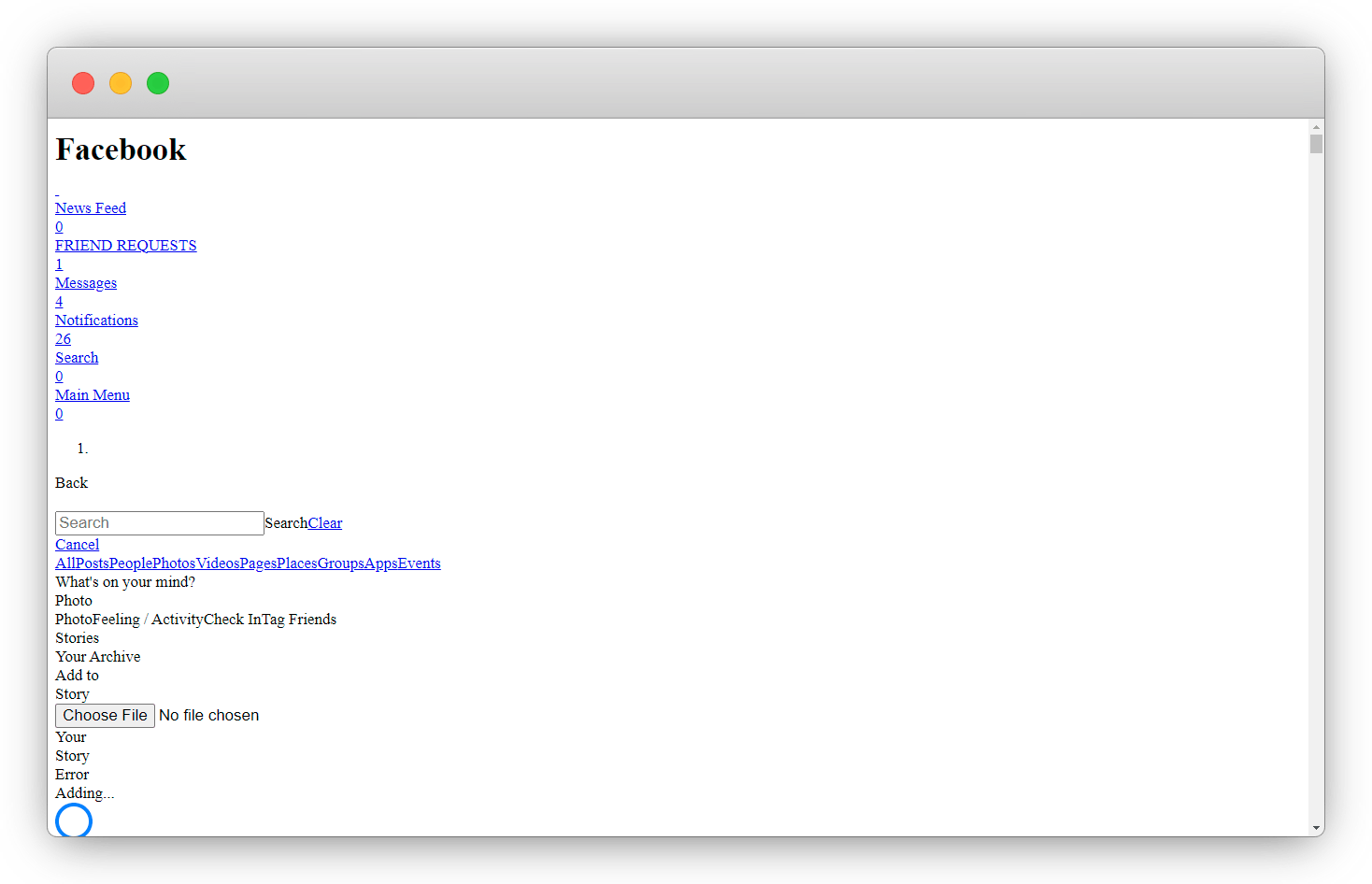
Below is how FaceBook page will look like with just HTML 

facebook without css.png

Will anyone use FaceBook with this look ? No one will. 

2. What is actually CSS?

It stands for cascading style sheet. It decides how HTML content will be represented on browser. 

This design and description includes colors, layout, background-colors, visibility, display and much more. Here CSS is missing flesh in skeleton. So now it is less scary and more attractive. 

See the image below. 

Skeleton-with-body

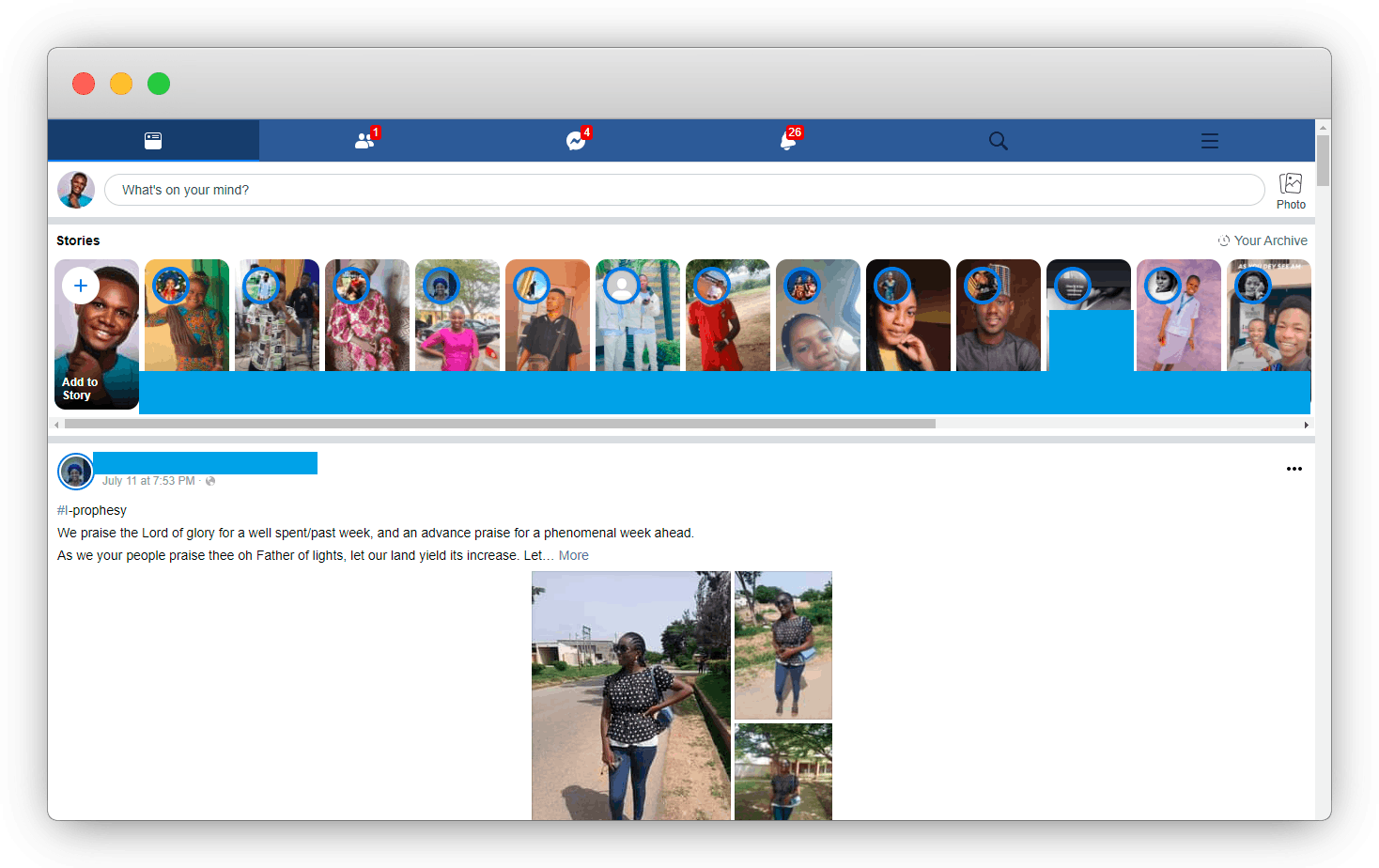
Now, we've good looking figure, let's see how FaceBook page looks with CSS. 

FaceBook-with-CSS.png

Friendly and attractive, right ? 

Now, the good news for you is you can earn income by just mastering HTML and CSS. A company can hire you to build their website or rebuild their portfolio. 

Below are some project ideas to showcase your HTML and CSS skills. 

1. Small Business Portfolios

Have you noticed small shop down your street ? You can approach the owner and offer them to build them a portfolio (free or with a discount) and get a chance to be recommended to their networks/ colleagues. 

2. Company Landing Page 

Every small scale to large scale business want their online presence to market their work,  a website, which you're good at building, reach out to such businesses and show them what you can build with explanation why they should consider your design. Ask them if they want something similar or better than your sample.

3. Individual Portfolio 

Every professional, from engineer, model, photographer, farmer needs online presence to showcase their work experience and talent. You can approach them with reasons to have a portfolio that make them stand out in market. This in turn makes them your next client and plus 1 project in your portfolio. 

These are just very few opportunity turn your skill into profession. 

Check out these article which may be helpful for building your portfolio. 

A List of CSS resources for beginners - by devin ford 

Over 10 Frontend Challenges - by Ayodele Samual Adebayo 

Top 10 project for Beginners to practice HTML and CSS